
Sending Tokens to an External Wallet
This explains how to send tokens from your Avacus wallet to another wallet address.
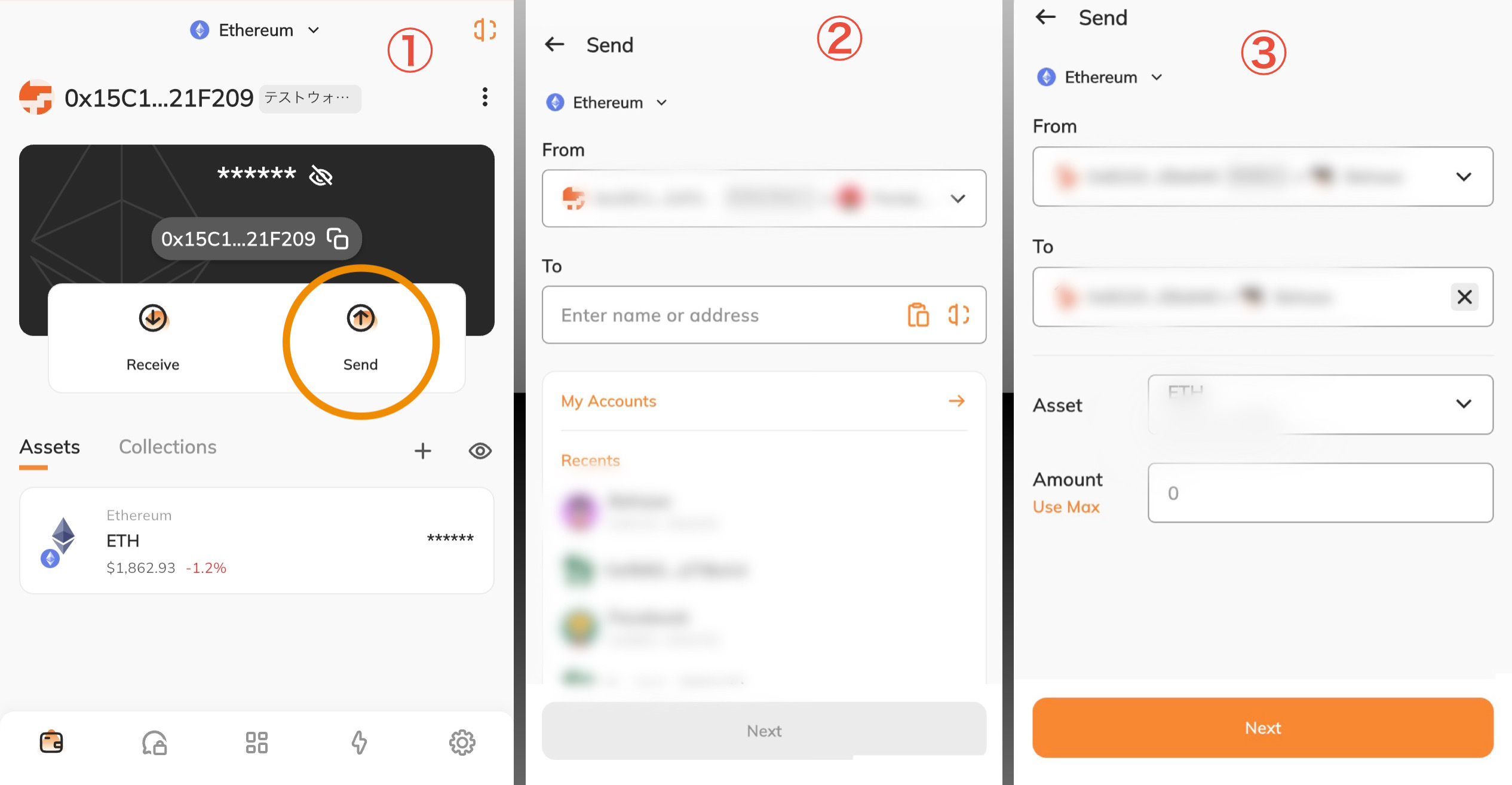
*Wallet addresses and similar details in the images have been blurred.
1. Start a Transfer
On the wallet screen in Image ①, tap "Send."
2. Specify the Recipient and Network
On the send screen in Image ②, select and enter the following:
- Network (e.g., Ethereum)
- Recipient wallet address
You can enter the recipient address using any of the following methods:
- Copy and paste it from an external exchange, etc.
- Select it from My Account (other wallet addresses imported into the app)
- Select it from your "Recent" activity
3. Choose the Token and Amount
After entering (selecting) the recipient, choose the token type and amount in Image ③, then select "Next."
4. Check the Final Confirmation Screen
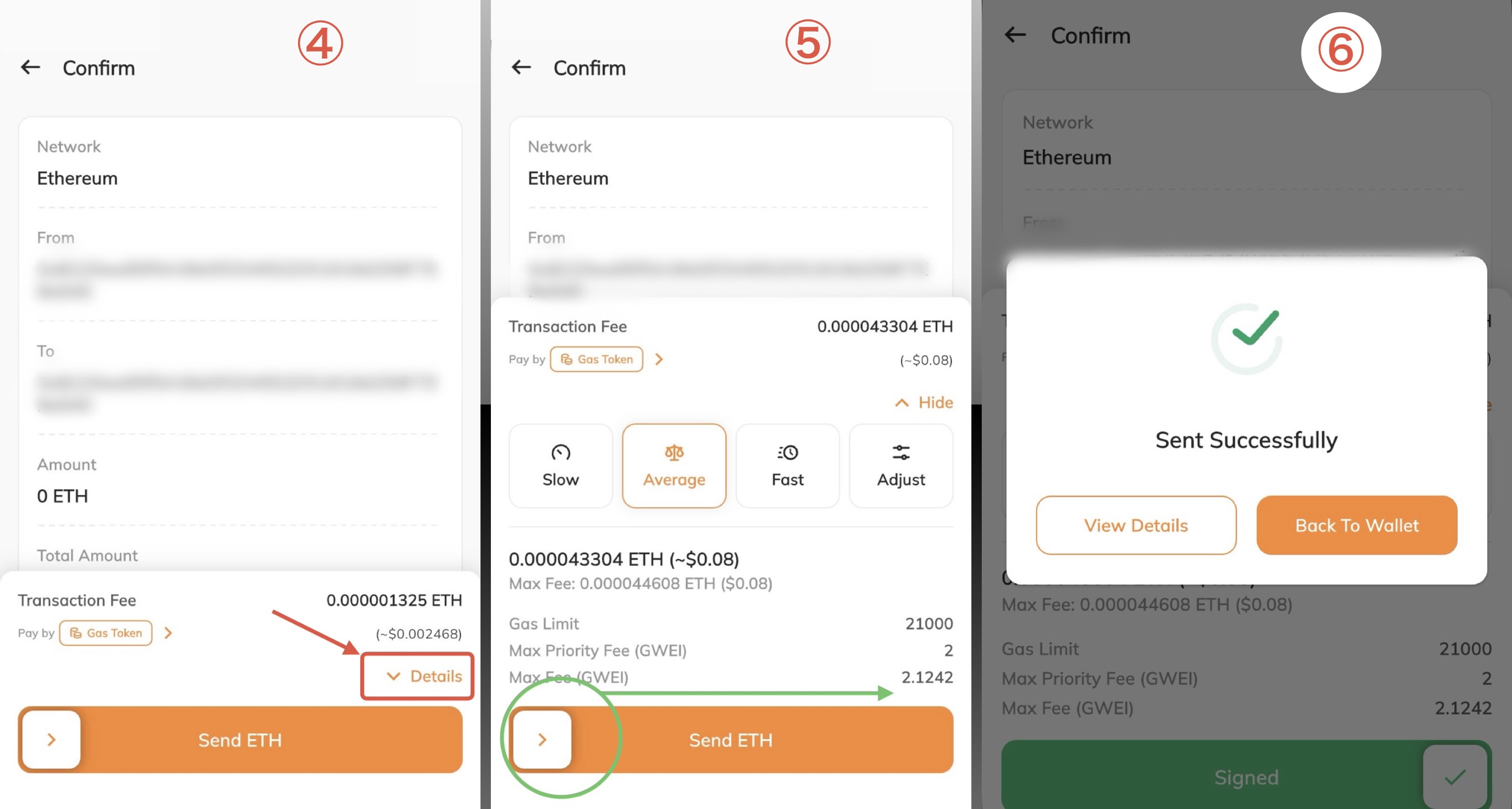
Image ④ is the final confirmation screen. It displays the network, sender, recipient, amount and token type, and the total including the gas fee.
A transfer generally cannot be canceled once sent. Be sure to check every item carefully before proceeding.
Related article: I Sent Funds to the Wrong Address
5. (Optional) Change the Gas Fee Speed
At this point in Image ④, the gas fee is set to "Slow." If you'd like to change this, tap "Details," circled in red, in Image ④.
Tapping it opens the gas fee settings screen shown in Image ⑤. Here, you can choose from three levels: "Slow," "Average," and "Fast." Keep "Slow" selected if you'd like to minimize the gas fee, or choose "Average" or "Fast" if you'd like your transaction processed more quickly.
Example: If Image ④ was left on "Slow," the gas fee would be minimal. Switching to "Average" here increases the gas fee but speeds up processing.
Related article: What is a Gas Fee?
6. Review and Send
Once you've confirmed everything is correct, slide the green bar in Image ⑤ to the right to confirm the send.
After sliding, the completion screen shown in Image ⑥ will appear.
After Sending
Information about the sent token is first sent to the network's pending transaction pool (the mempool). Within the mempool, transactions with higher gas fees are processed first. As a result, if you set a low gas fee, processing may take longer when the network is congested.