
There are two main ways to receive tokens in your Avacus wallet: "1. The basic method of sharing your wallet address" and "2. Requesting a specific amount." Here, we'll walk through each method separately.
1. Receive by Sharing Your Wallet Address (Basic Method)
If you're having tokens sent to Avacus from an external exchange or wallet, you'll first need to share your own wallet address with them. There are two ways to do this.
Copy and Share Your Address
Open the Avacus app and go to the wallet (home) screen.
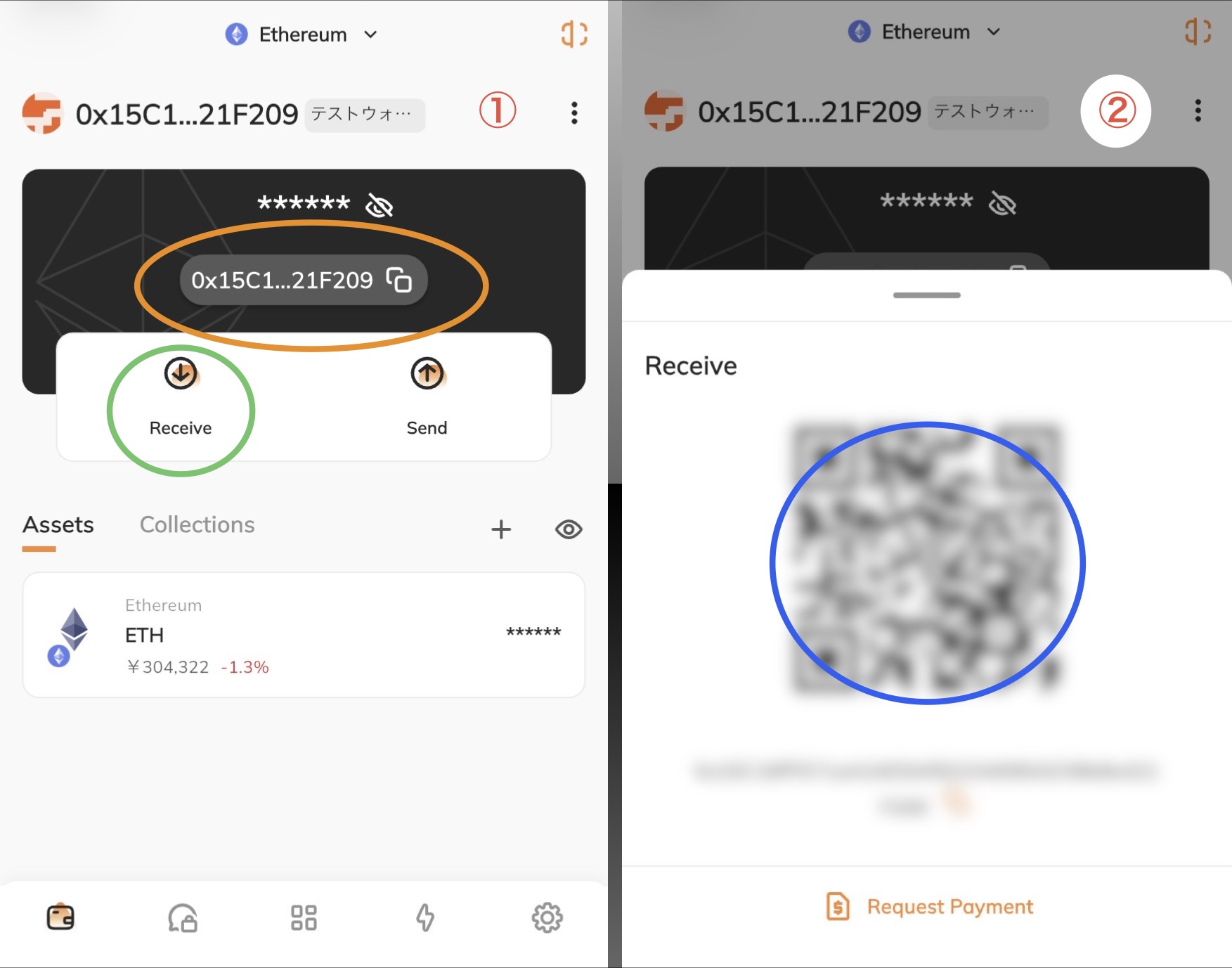
Tapping the orange circle in Image ① copies your wallet address. Have the sender paste the copied address into the recipient field on the sending exchange or app.
Have Someone Scan Your QR Code
In situations where copy-and-paste isn't an option — for example, when receiving funds from someone in person — a QR code is an easy alternative.
Tapping "Receive" (the green circle in Image ①) displays a QR code as shown in Image ②. Once the other person scans this screen with their camera, their app will immediately move to the send screen.
*The QR code and wallet address shown on screen have been blurred.
2. Request a Specific Amount or Token (Request Payment)
If you'd like to specify exactly how much you want sent, use the "Request Payment" feature. Select "Request Payment" at the bottom of Image ②.
Choose the Token to Request
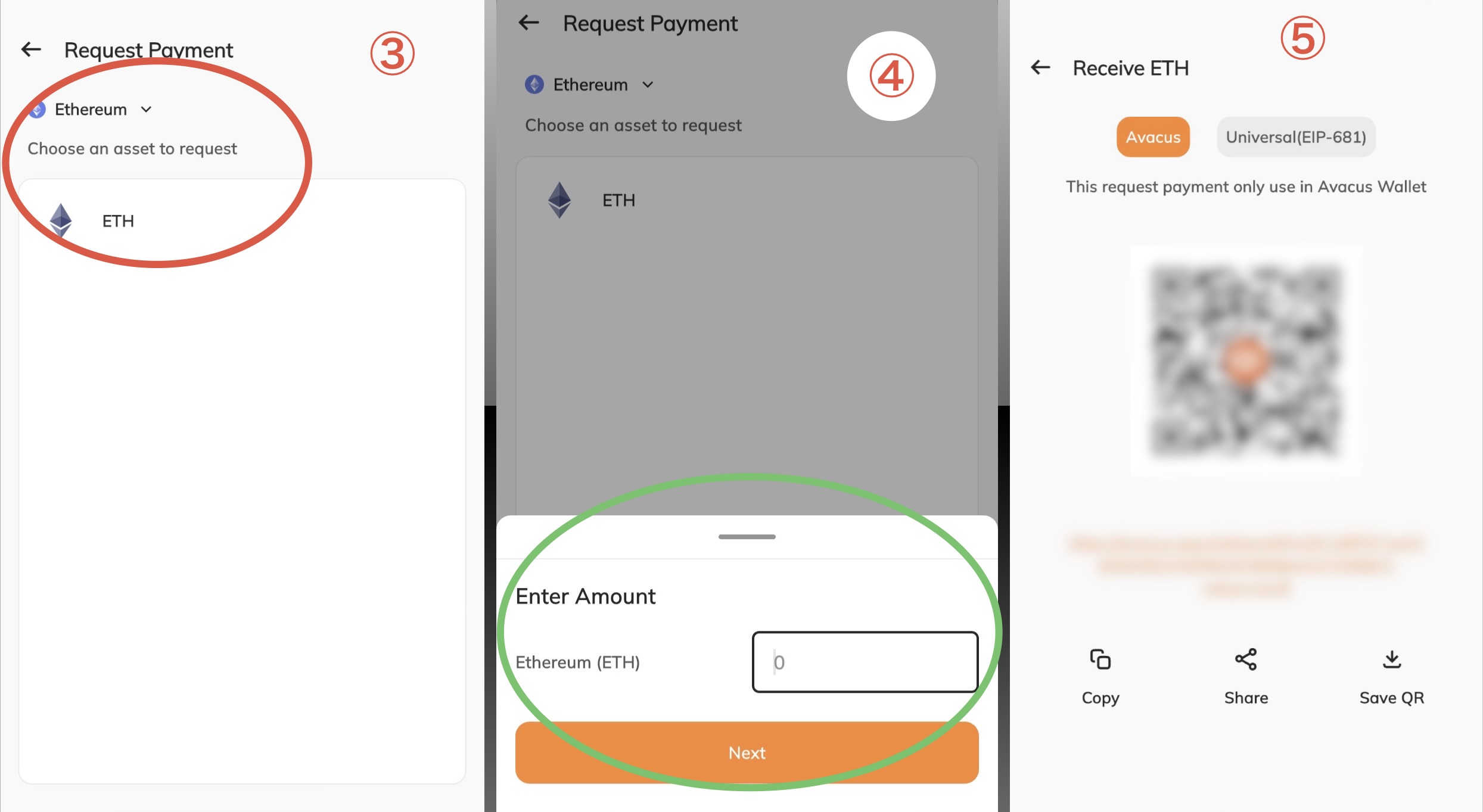 Image ③ shows the Request Payment screen. If your account hasn't been set up to display any additional tokens, only ETH — the native token of the Ethereum network — will be shown (we'll use ETH as an example here).
If you've already added custom tokens, or already hold a token you'd like to receive as an asset, that token will also appear in the list.
If the token you want isn't in the list, add it as a custom token first. For details, see Sent Tokens Are Not Displayed on the Wallet Screen.
Enter the Amount and Generate a QR Code/Link
Image ④ shows the screen after tapping ETH in Image ③. Enter the amount you'd like to request, then select "Next."
On the next page, a payment QR code and link will be generated, as shown in Image ⑤.
By showing this QR code or link to the other person, or sending it to them as a message, you can smoothly request a payment with a specific token and amount.