
Avacus includes a feature called "Pay To Open" that lets you sell content as a one-time purchase.
How to Use Pay To Open
First, open the SNS screen and select the Party Chat where you'd like to sell content. From there, follow along with the images below.
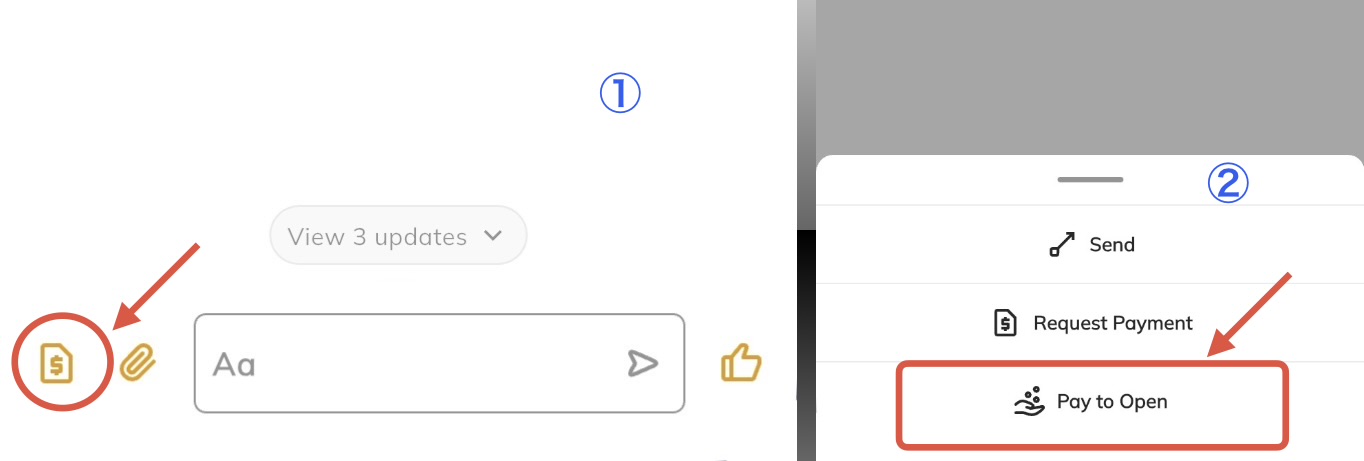
In the Party Chat screen, tap the "$" icon on the left side of the chat bar (Image ①), then select "Pay To Open" from the menu that appears (Image ②).
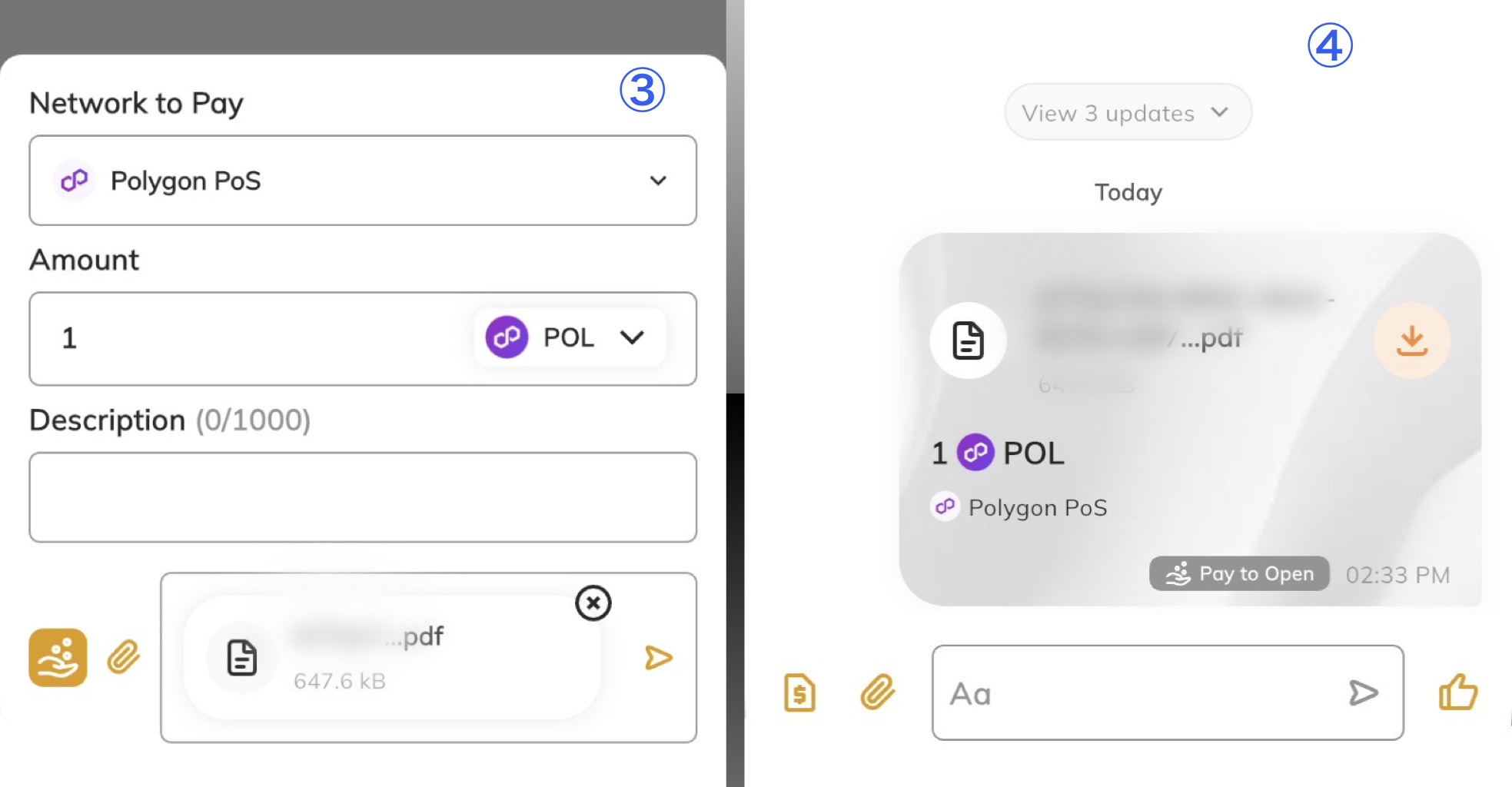
Next, set the price and file for the content you'd like to sell (Image ③). You can configure the following:
- Network (Ethereum, Polygon, BNB Smart Chain)
- Token and amount (ETH, JPYC, USDT, etc.)
- File type (image, video, PDF, etc.)
Once configured, select the send button and sign the transaction.
This starts the sale in your Party Chat (Image ④). Other chat members can then purchase it if they choose.
How to Receive Your Earnings
Pay To Open earnings aren't sent directly to your wallet. They're first pooled in a smart contract, so you'll need to claim them yourself.
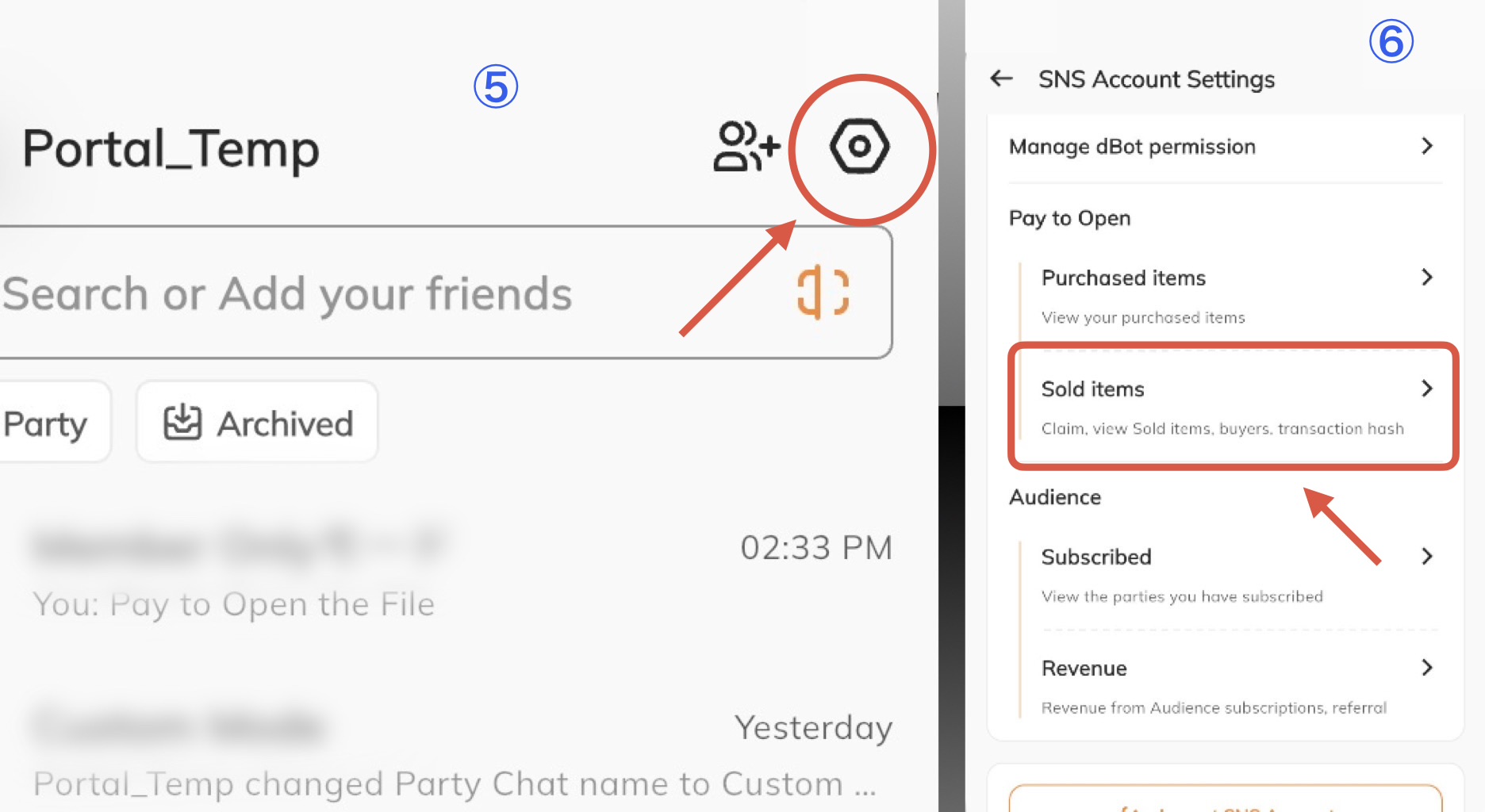
From the SNS screen, tap the hexagonal icon in the top right to go to your SNS account settings (Image ⑤).
Next, under the "Pay To Open" section, select "Sold Items" (Image ⑥).
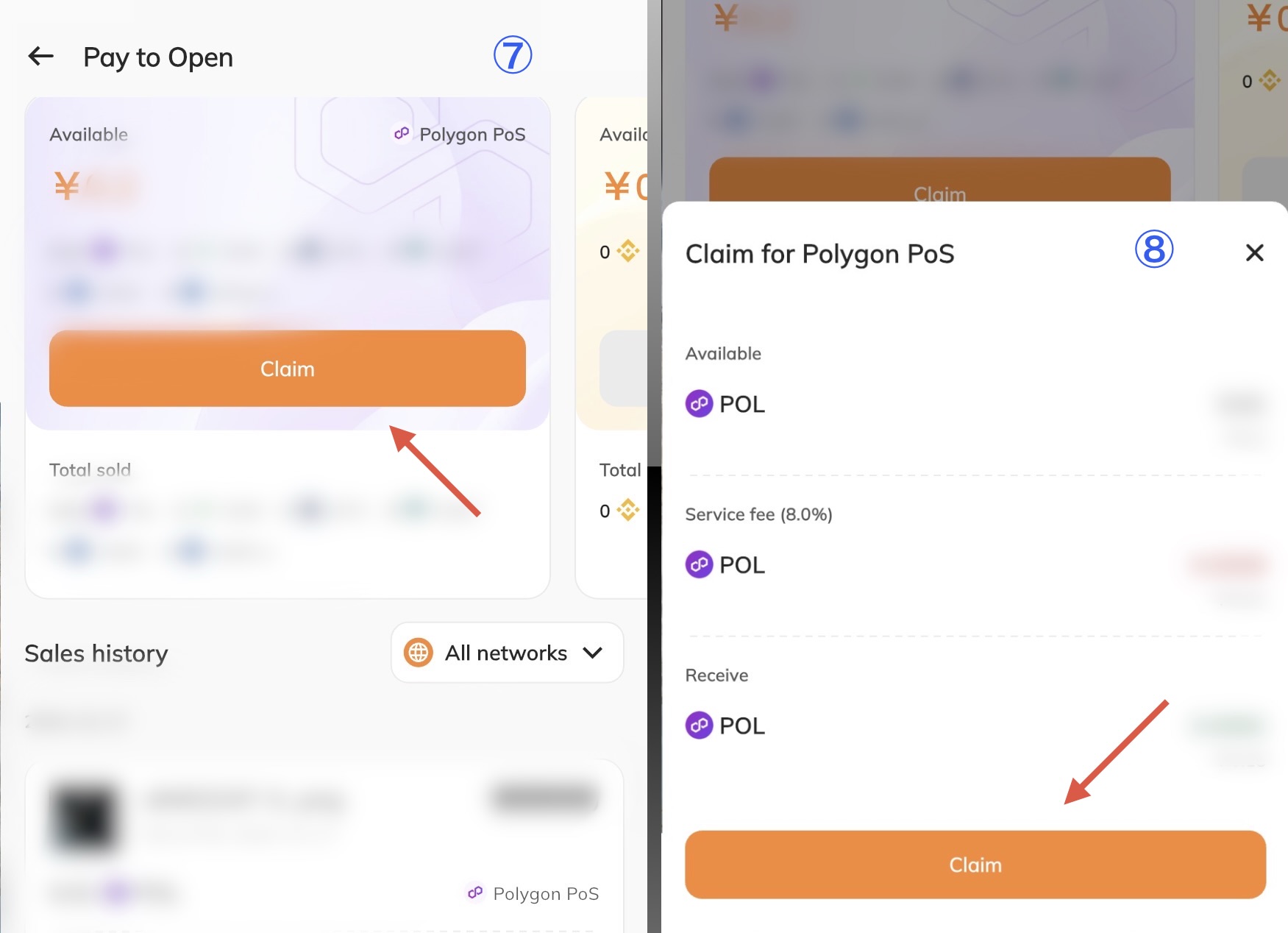
Here, you can see the earnings and items you've sold so far (Image ⑦). To claim your earnings, first select the network the item was sold on at the top, then select "Claim."
After selecting "Claim," the next page shows a breakdown of the claim (Image ⑧). Select "Claim" again on this screen. After signing the transaction, your earnings will be deposited into your wallet.
Claiming your earnings requires a gas fee, just like a regular transfer.
Related article: What is a Gas Fee?