
What Is the Avacus SNS Feature?
Avacus features an SNS function built directly into the wallet.
The SNS profile you create isn't tied to a phone number or email address — it's linked to your "wallet address (account)."
1. Create Your SNS Account
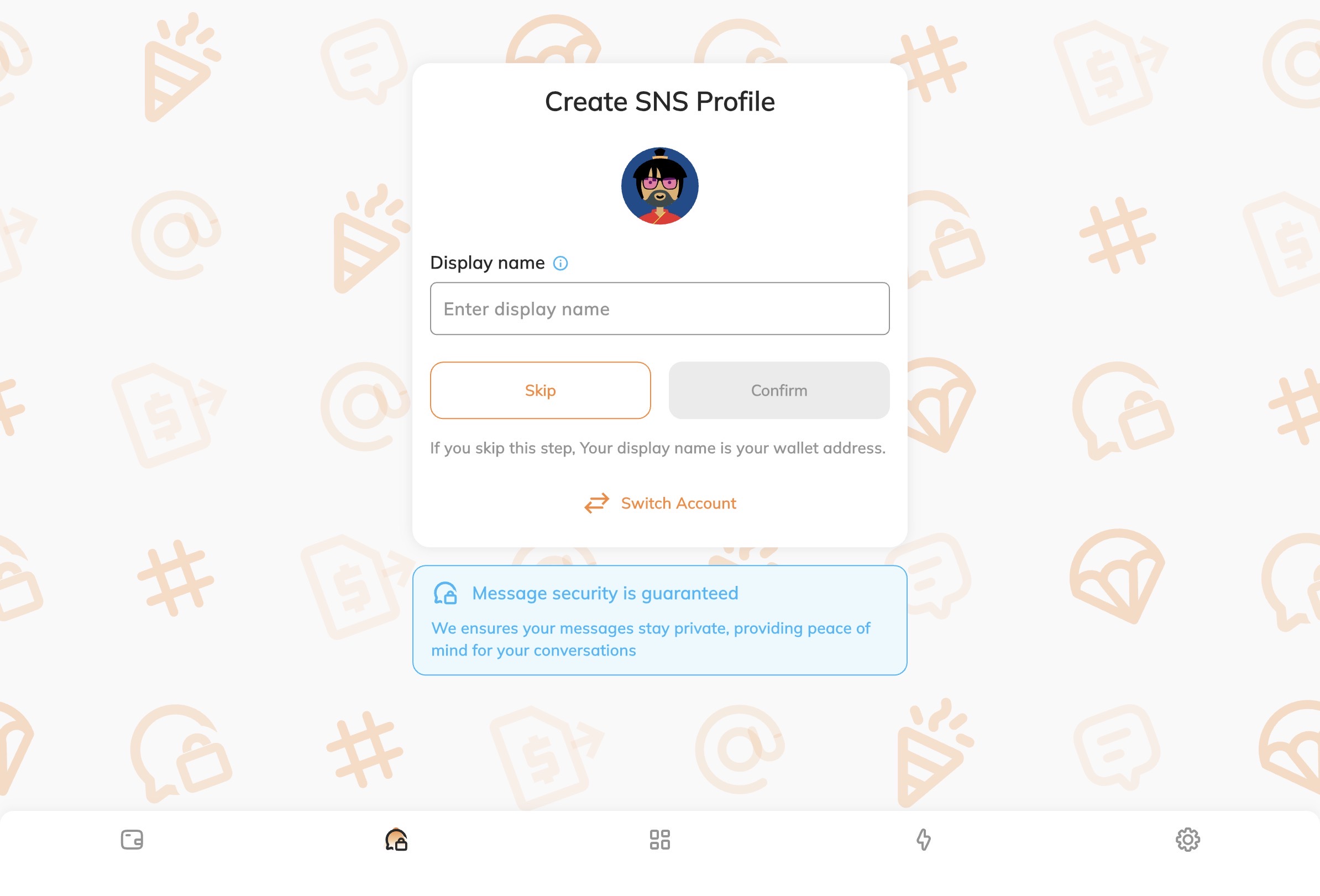
Select the "SNS" tab from the navigation bar at the bottom of the app.
Next, create your account by following these steps.
- On the profile creation screen, enter a display name.
(If you skip entering a display name, your wallet address starting with "0x" will be used as your display name instead.) - After entering a display name, you'll sign a message to prove you own the wallet.
- Once the signature is complete, your SNS account is created.
Who's this default profile picture?
The image shown when you create your account is a "wallet avatar" automatically generated for each wallet address. It's created by randomly combining parts like eyes, hairstyle, and skin tone.
If you'd like to change this avatar to an image of your choice, you can do so using the steps described in "2. Edit Your Profile" below.
2. Edit Your Profile
Once your account is created, let's customize your profile to make it your own.
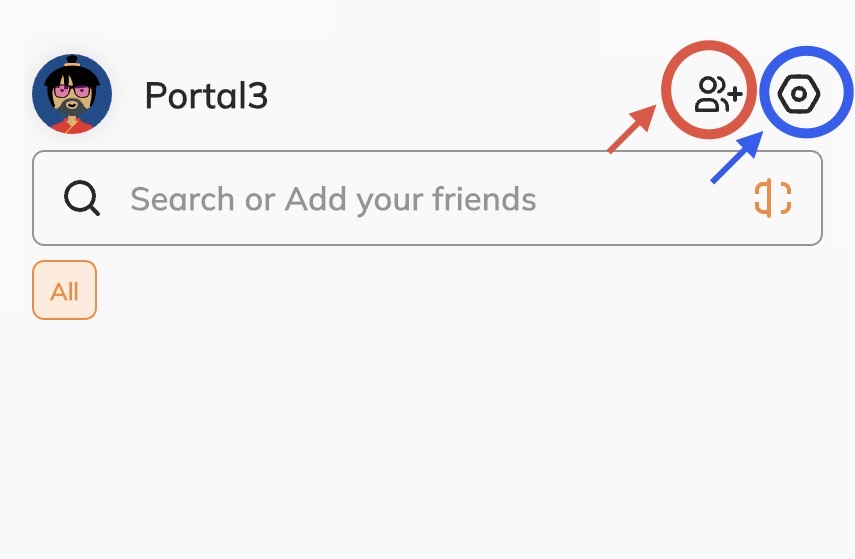 Once your account is set up, the SNS screen includes a search bar for finding chat rooms and users, along with these two icons:
- Red circle icon: Create a new chat room
- Blue circle icon: Open your SNS account settings
Here, we'll cover the blue "settings icon," which leads to editing your profile.
Open Your Profile from Settings
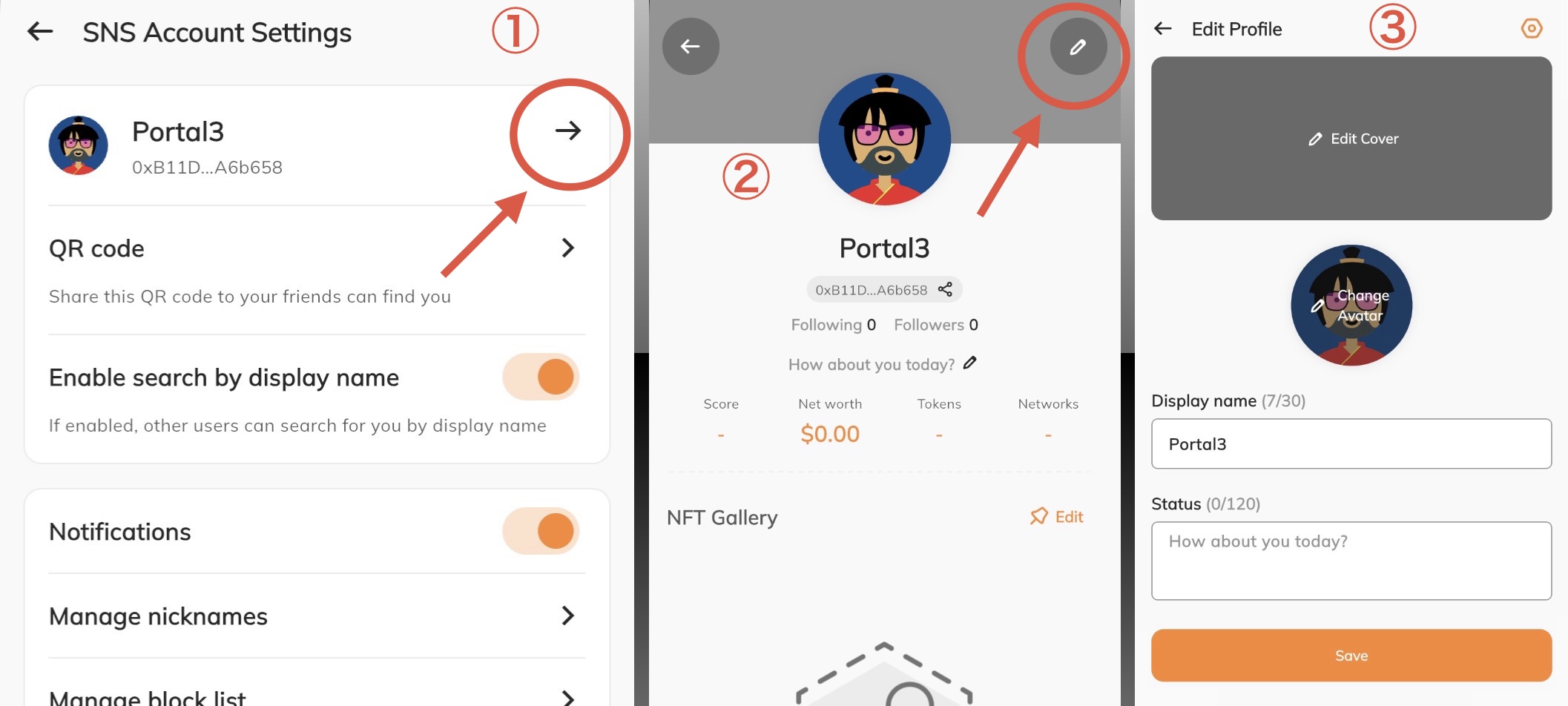
From the settings screen (Image ①), you can do the following:
- Display your profile QR code
- Toggle whether your display name can be found through search
- Toggle whether chat notifications, etc., are enabled for your account
In addition to these, tapping the orange circle in the top right (a button that takes you to your own profile screen) will take you to the profile screen shown in Image ②, explained next.
Check and Edit Your Profile
In Image ②, you can see how your profile currently appears. This is the public screen that other users see.
If you'd like to make changes, tap the pencil icon in the top right.
Tapping it opens the profile editing screen shown in Image ③. From this screen, you can change the following:
- Cover image
- Avatar (you can also change the "wallet avatar" mentioned earlier from here)
- Display name
- Status
Go ahead and make this profile your own.