
When creating a new wallet in the Avacus app, you can choose between the following two methods.
① Create a wallet by generating a new seed phrase
② Create a wallet using a Google / Apple / Facebook / X account
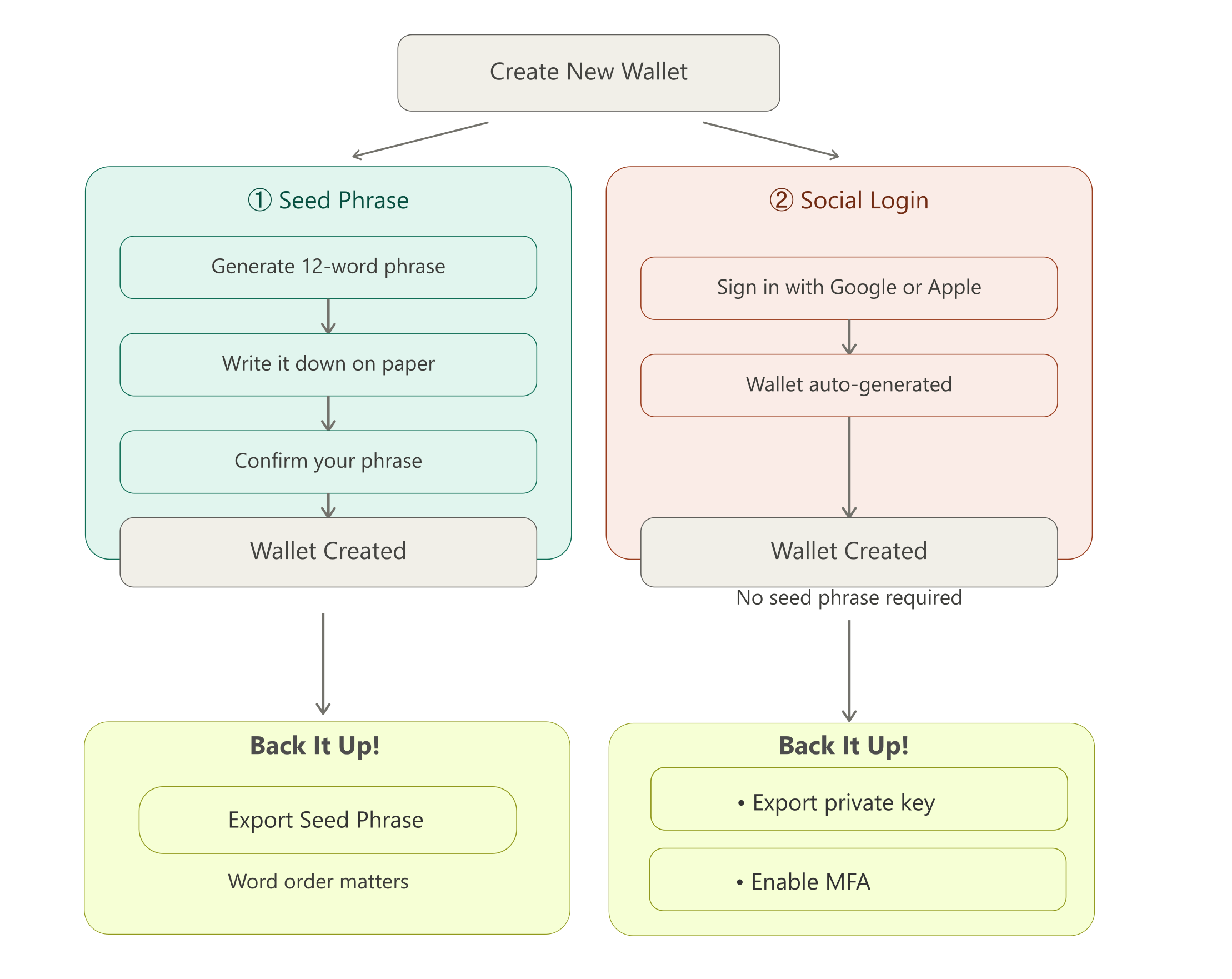
Whichever method you choose, the basic way you use the wallet — such as sending funds — is the same. The only differences are in how you back it up and how you restore it.
How to create a wallet
On the app's initial launch screen, you can choose which method to use to create or restore your wallet.
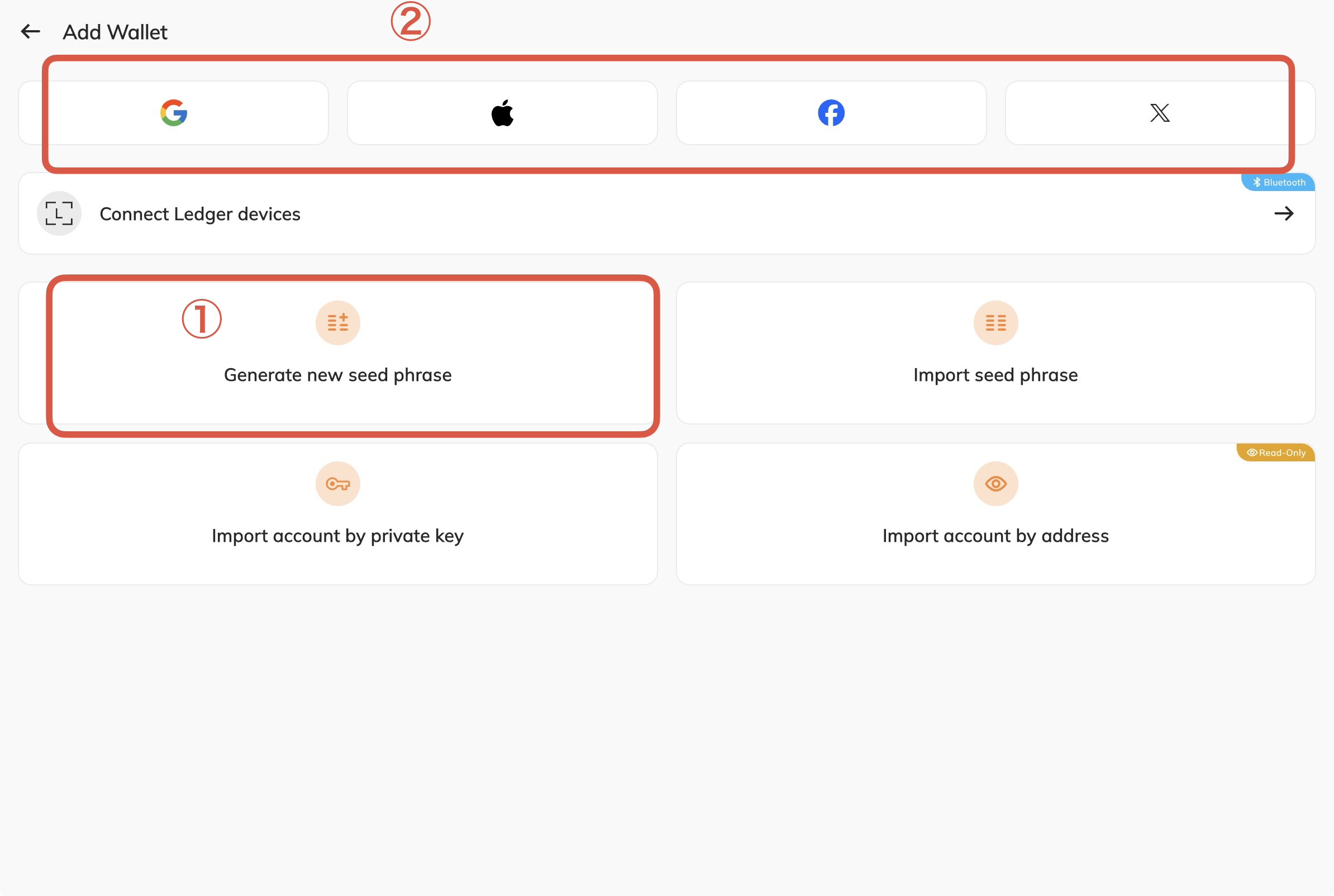 ① Create a wallet by generating a new seed phrase
- Launch the app and, on the initial screen, select "Generate new seed phrase"
- A 12-word seed phrase will be displayed. Be sure to write it down on paper and store it in a safe place.
- Confirm the phrase by entering it, and your wallet creation is complete.
If you lose your seed phrase, it is impossible to restore your wallet, and you will lose access to your assets. The 12 words and their exact order are everything. Please note that even a single word mistake will result in an entirely different wallet being displayed.
② Create a wallet using a Google / Apple / Facebook / X account
- On the app's initial screen, select the icon for the platform account you'd like to use.
- Once account authentication is complete, your wallet will be generated automatically.
About Multi-Factor Authentication (MFA)
After creating a wallet via an external account link, "Set up Multi-Factor Authentication" will be displayed at the top of the home screen. This feature lets you set up additional recovery methods on top of the key information currently limited to your device and account.
Be sure to keep track of your configured authentication methods (email address, device key, etc.). Even if your device is broken or lost, you can recover your wallet as long as you have two or more configured recovery methods. However, if they are missing, you will not be able to regain access.
Because wallets created using method ② are managed via Web3Auth, a 12-word seed phrase is not generated or displayed. As a precaution, we strongly recommend exporting your private key as a backup.
Related article: How Do I Transfer My Wallet After Changing Devices?