
In the Avacus Web3 app, the transfer method depends on how you originally created your wallet. The recovery methods are categorized into the following three types.
After launching the app on your new device and accepting the Terms of Service and Privacy Policy, select the option that applies to you.
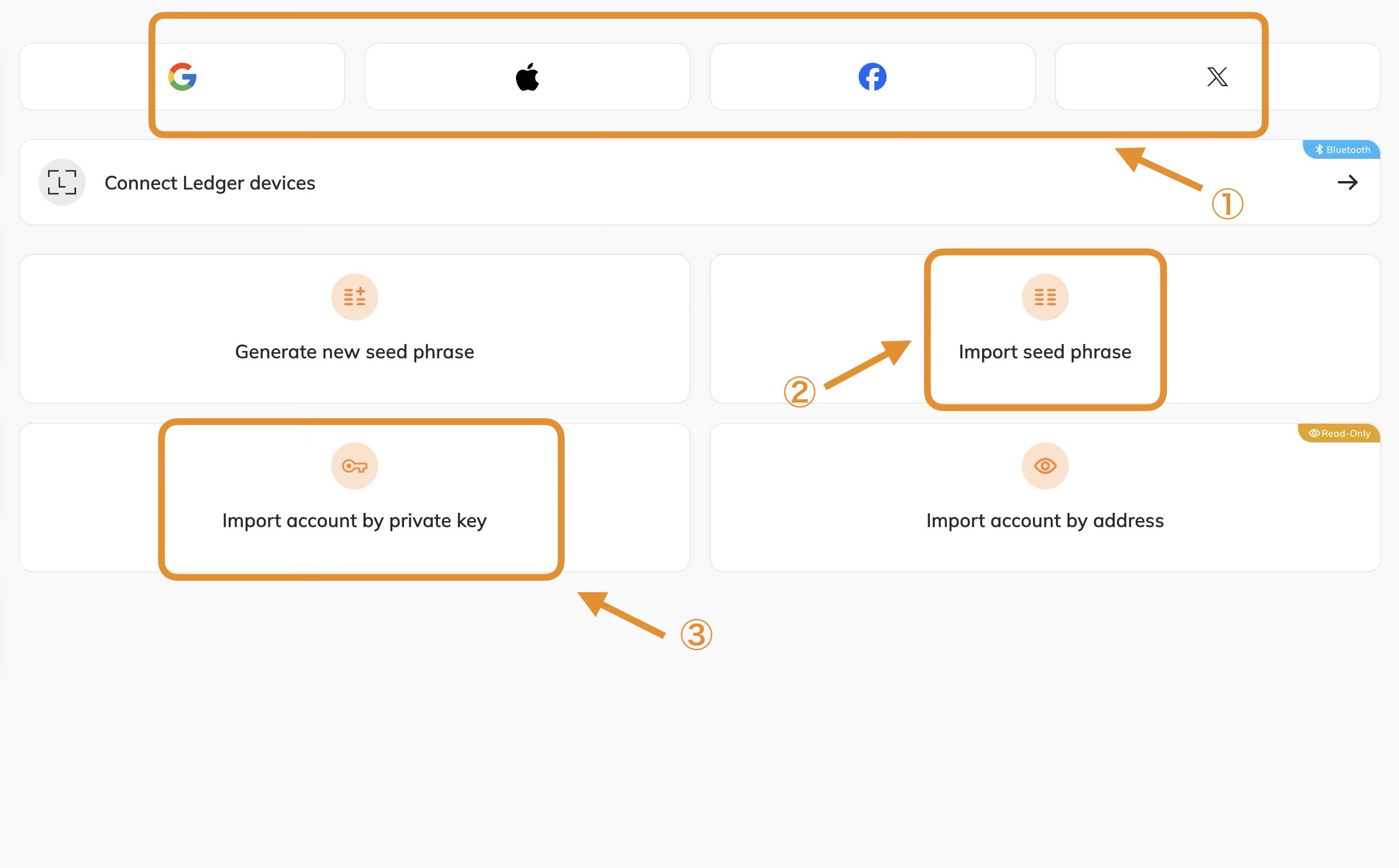
1. Created via Google, Apple, Facebook, or X Accounts
Make sure to select the exact same platform account you used previously. Selecting a different account will generate a completely new, empty wallet.
Note on Multi-Factor Authentication (MFA): If you had set up MFA, you may be asked to confirm your pre-configured recovery share during connection. If you have lost or forgotten this information, check your email inbox and search for "Web3Auth" to see if recovery instructions were sent to your email address.
2. Created by Generating a 12- or 24-Word Seed Phrase
Select "Import seed phrase" on the selection screen, and enter (or copy and paste) your saved seed phrase into the "Seed Phrase" field on the next page.
If you can still log into the wallet on your old device, you can also tap the camera icon to scan the seed phrase QR code from the old device to restore it.
How to display the seed phrase QR code on your old device: Ensure no one is around you when performing these steps. App Settings > Multi-Wallet > [Select Target Wallet] > Gear Icon (top right) > Export Seed Phrase > Enter PIN
The QR code will appear after tapping "Show QR Code."
3. When Your Only Saved Information is the Private Key
In this case, select "Import account by private key." Enter your saved private key into the "Private Key" field on the next page.
If you can still log into the wallet on your old device, you can also tap the camera icon to scan the private key QR code from the old device to restore it.
How to display the private key QR code on your old device: Ensure no one is around you when performing these steps. App Settings > Multi-Wallet > [Select Target Wallet] > Export Private Key > Enter PIN
The QR code will appear after tapping "Show."