
Even if a transaction is completed on the blockchain, it may not reflect on your Avacus wallet screen. This issue is typically caused by one of three reasons.
- The token has not been added to your display settings
- The token was accidentally hidden via a swipe gesture
- The tokens were sent to a different wallet address or a different network
Reason 1: The Token Has Not Been Added to the Display Settings
Private wallets like Avacus are flexible systems designed to handle any token on-chain. Rather than automatically displaying every token in existence, the app requires users to manually add the specific tokens they want to see. This also serves as a security measure to prevent unrecognized scam tokens from cluttering your wallet.
How to Display:
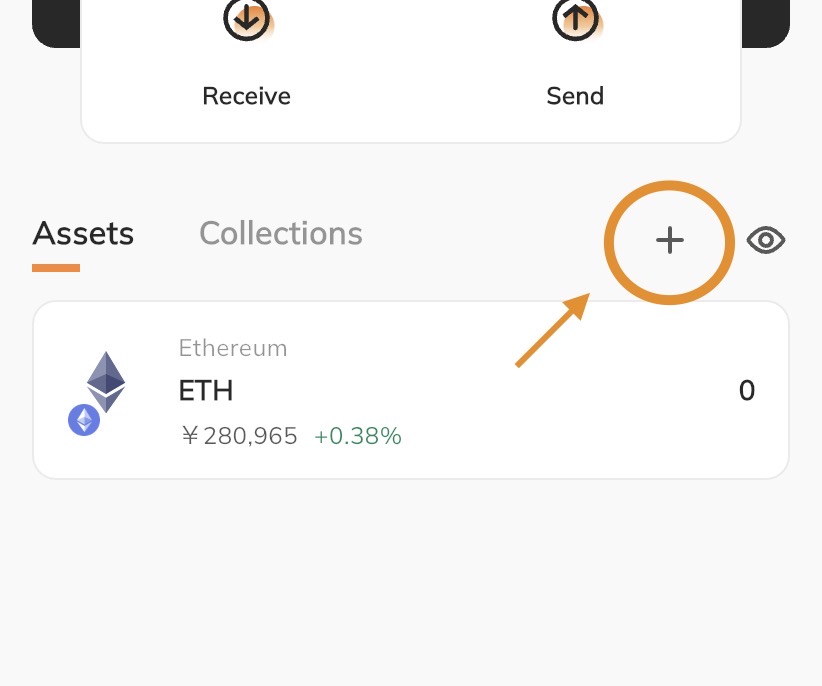
- Tap the plus button (+) located on the right side of the Assets tab on the wallet screen.
- Enter the token name (ticker) in the search bar and select it from the results.
- If the token does not appear in the search results, select Custom Token in the top right corner. Enter the exact smart contract address of the token on the following page and proceed. The token will now be displayed in your wallet.
If you no longer wish to see a token, you can hide it by sliding the token name to the left.
Reason 2: The Token Was Accidentally Hidden via a Swipe Gesture
You may have hidden a token by mistake, or you might want to restore a token that you previously chose to hide because you no longer deemed it necessary.
How to Display:
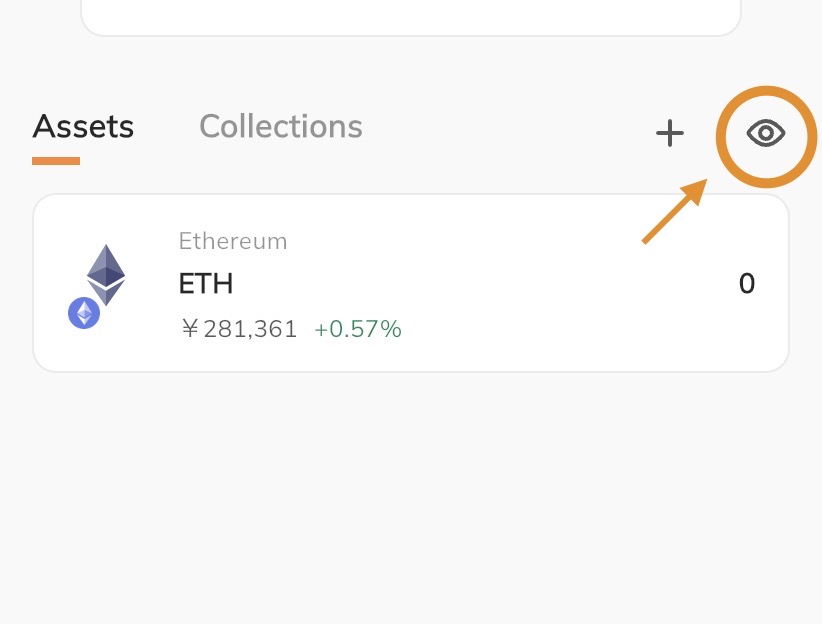
- Tap the eye icon to the right of the Assets tab to open the Token View Option.
- Check the box next to the token you want to view, then close the menu. The token will now appear on your wallet screen.
Reason 3: Sent to a Different Wallet Address or a Different Network
When withdrawing funds from an exchange or another wallet, it is common to accidentally select the wrong network or input an incorrect destination address.
For instance, if you transfer assets intended for the Ethereum Mainnet but mistakenly select the BEP-20 (BNB Smart Chain) network, the funds will arrive on a different chain — even if the wallet address is identical. Consequently, they will not show up under your Ethereum balance.
Furthermore, if the destination address itself was incorrect, those assets are permanently lost, as blockchain transactions are irreversible and cannot be reversed or recalled. Always double-check that the recipient address is accurate.
How to Check the Network:
Switch the network setting at the very top of the wallet screen to the network you selected during the transfer (e.g., BNB Smart Chain) to verify your balance.
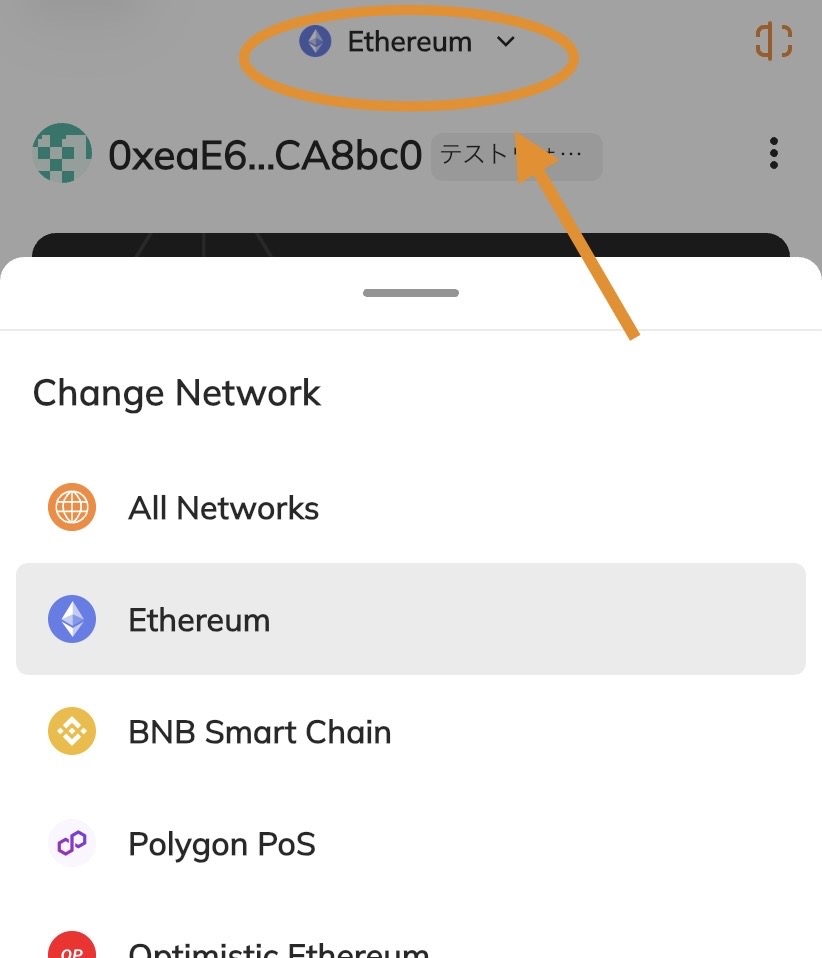
Moving received tokens to another location requires a separate gas fee paid in the native token of that specific chain (such as ETH, BNB, or POL).
Related Articles: What is a Gas Fee?