
The Avacus app has a multiple wallet feature, letting you hold any number of wallets and accounts within the app. This article is for anyone who'd like to hold multiple wallets (accounts).
Related article: What Is a Wallet?
There are four ways to increase the number of wallet addresses you hold, starting from your existing wallet:
- Generate a seed phrase to create a wallet
- Restore a wallet you created previously
- Create a wallet (account) using a platform account
- Add an account within a wallet (only possible for wallets created via seed phrase)
This article mainly covers method D, "adding an account within a wallet."
Adding an Account Within a Wallet
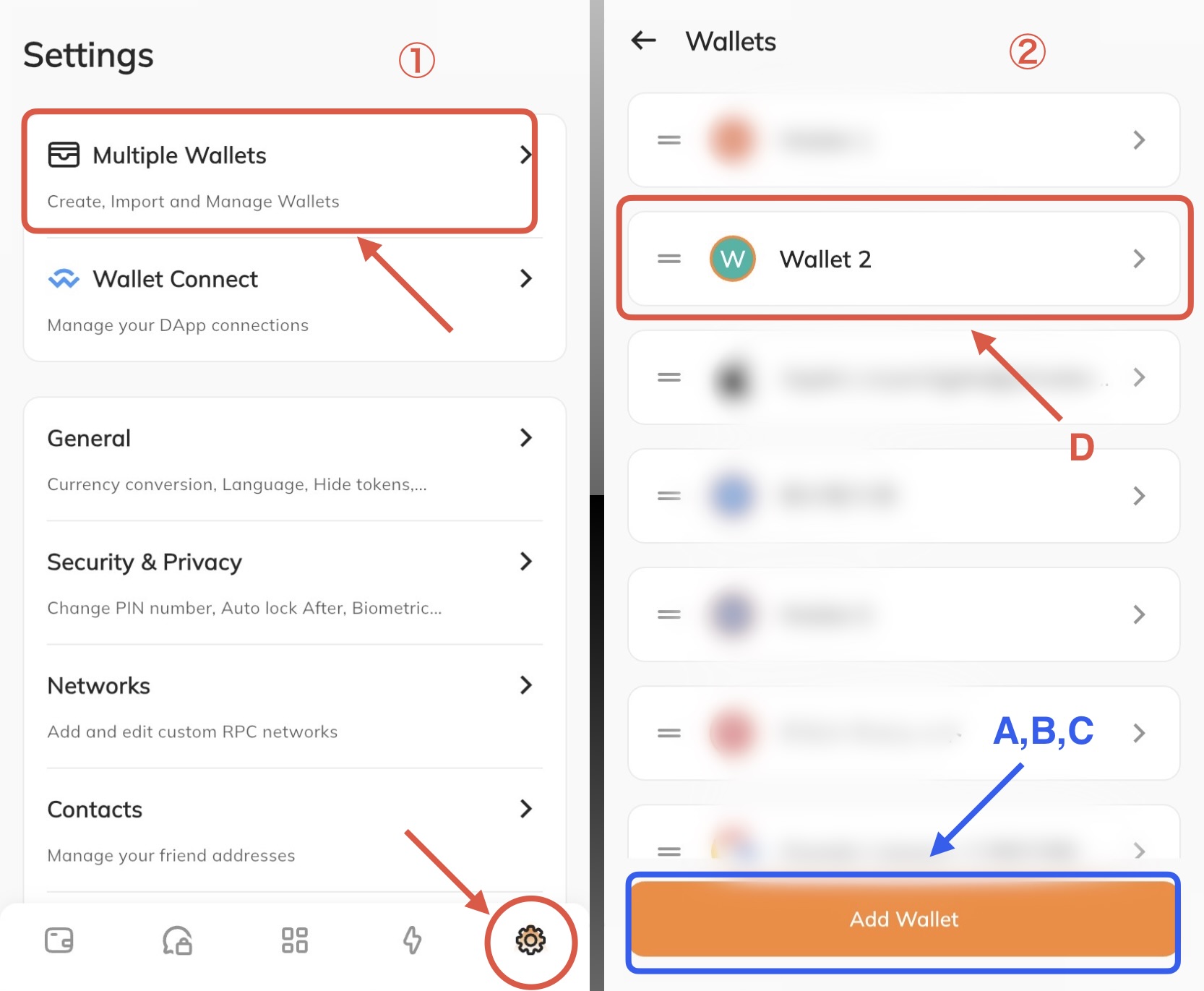
From the navigation bar at the bottom of the app, select the settings icon on the far right, then select "Multiple Wallet" (Image ①).
On the next screen, Image ②: for D, select the wallet you'd like to add an account to. For A, B, or C, select "Add Wallet" at the bottom.
For the steps after tapping "Add Wallet" for A, B, or C: Creating a Wallet on Avacus
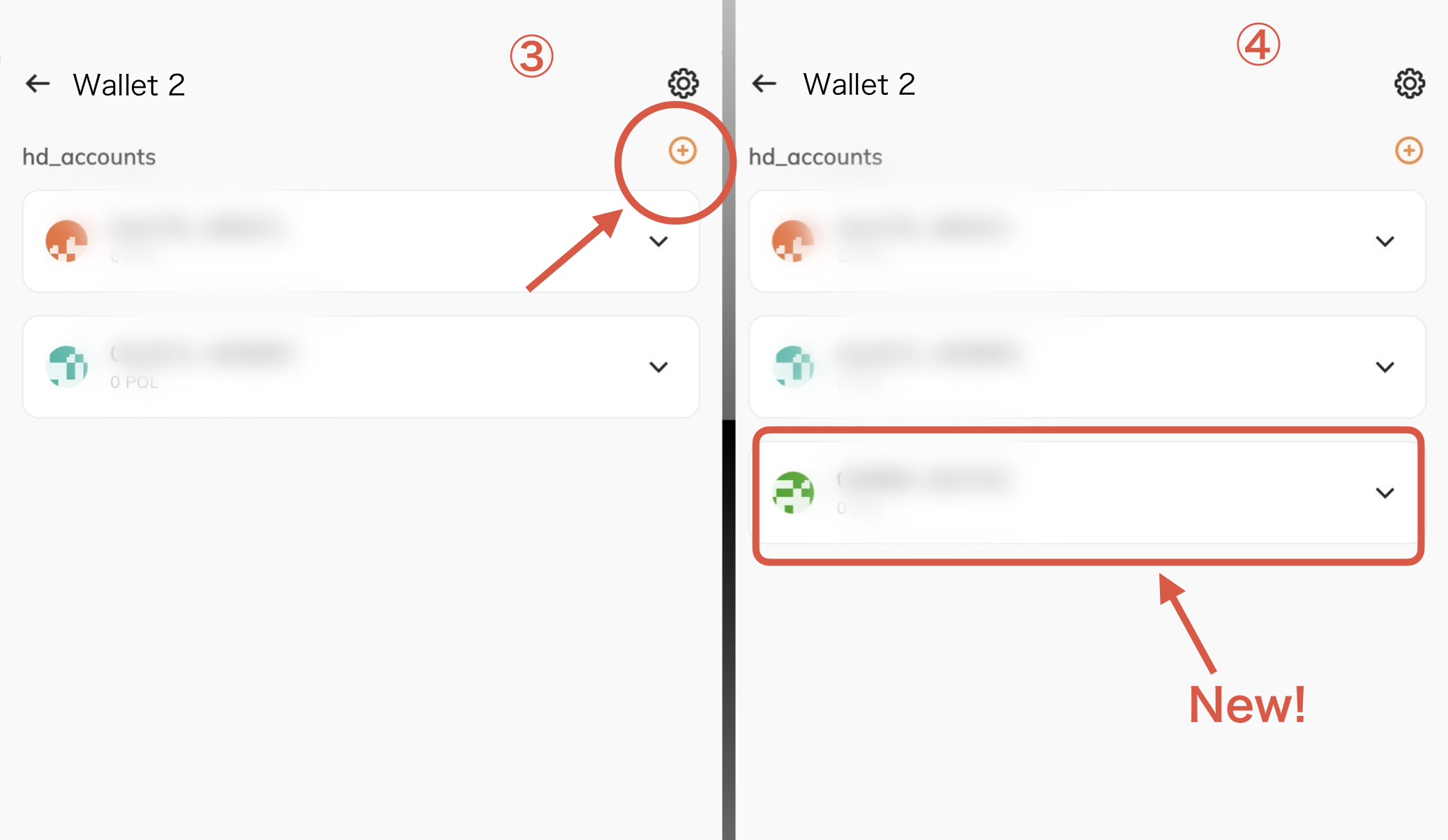 After selecting a wallet, you'll be taken to that wallet's screen. Tap the "+" in the top right (Image ③).
Each tap of "+" adds one more account. Once created, accounts cannot be deleted later (they can only be hidden). Keep your wallet management in mind, and only tap as many times as you actually need.
Tapping it adds one account to the wallet (Image ④).
You can now manage multiple accounts while still keeping track of just one seed phrase.
Using the Accounts You've Added
You can switch between your added accounts by tapping your address shown at the top of the wallet (home) screen. You can also create a new SNS account using a new account.
If you restore your wallet after switching devices, your second and later accounts will temporarily disappear. Don't worry — tapping "+" using the same steps will regenerate the exact same addresses you had before.