
While using the wallet app, you may notice your wallet balance or token prices showing as "N/A." This isn't a bug in the app — it's likely that the RPC URL used to fetch this information is temporarily experiencing an error.
Chainlist.org is a free site where you can check a list of currently active RPC URLs. Multiple RPC URLs are available for each network, so if one isn't working, switching to a different URL can restore your connection.
Finding an RPC URL on Chainlist.org
1. Search for the Network
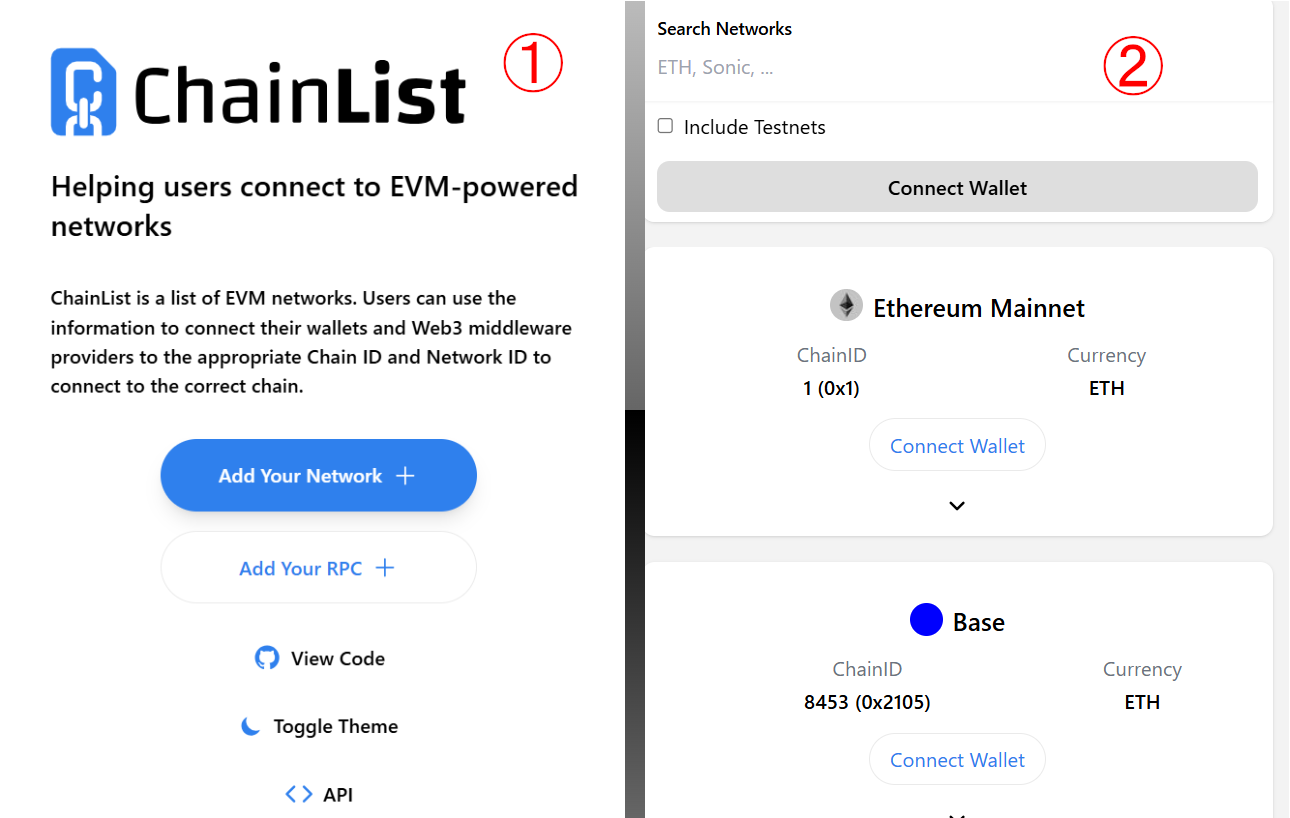 Go to Chainlist.org and enter the name of the network you want to check (such as Ethereum or Polygon) into the search bar, or scroll down to find it (Image ①).
Once you've found the network you'd like to fix, tap the dropdown icon below "Connect Wallet" in Image ② to expand it.
2. Check the RPC URLs
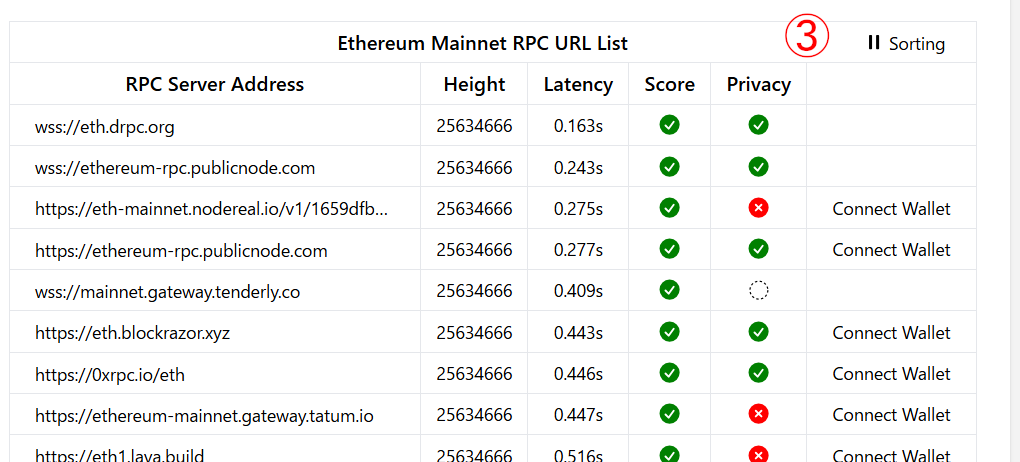 Selecting the dropdown icon for the network shows a list of RPC URLs, as shown in Image ③. Each RPC URL is often shown with information about its response speed and connection stability, so choosing one with good numbers can lead to a more stable connection.
3. Copy the RPC URL and Set It in the App
Copy the RPC URL you'd like to use, then set it in the Avacus app using the following steps.
App Settings > Network > [Target Network] > RPC URL
Delete the currently configured RPC URL, paste the URL you copied, tap "Edit," and you're done.
Related article: Wallet Balance Displays as "N/A"
4. Restart the App
After changing the RPC URL, either swipe down on the wallet (home) screen to refresh, or force close (task kill) and restart the app.
If switching to one RPC URL doesn't resolve the issue, try switching to a different RPC URL on Chainlist.org and repeating the same steps.