
In Avacus, setting up a subscription for a Party Chat lets you grant entry only to members who have paid a specified token in advance. This feature is useful for distributing content to paying members only, or running a closed community.
Subscription Mode
To start using subscriptions, you'll need to select Subscription Mode when creating your Party Chat.
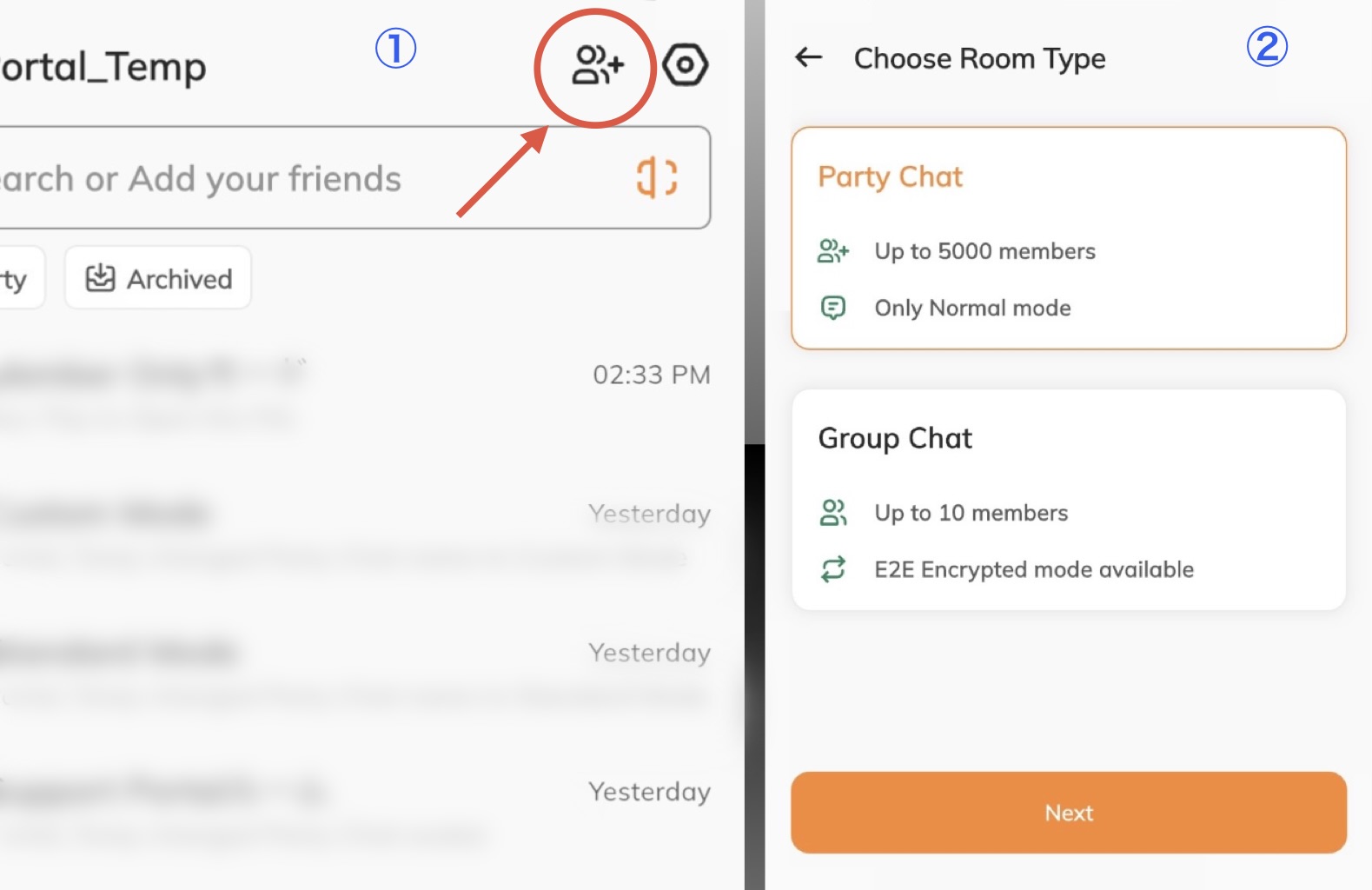
From the SNS screen, select the chat room creation icon in Image ①.
In Image ②, select "Party Chat," which includes the subscription feature.
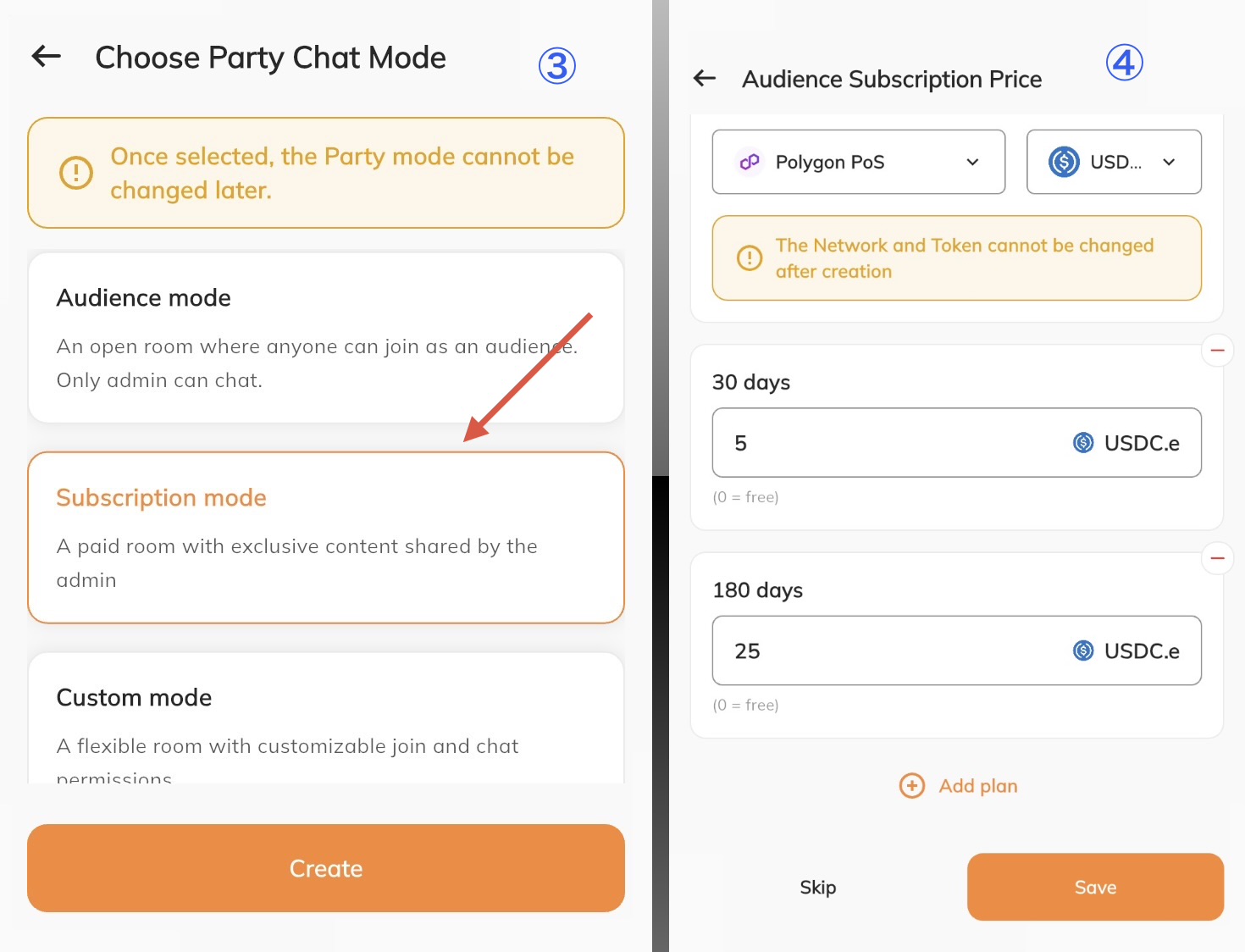
Image ③ shows the list of chat mode presets. Select "Subscription Mode."
On the next screen, Image ④, you can set your subscription (audience subscription) pricing.
- Network (Ethereum, Polygon, BNB Smart Chain)
- Token (USDT, JPYC, etc.)
- Duration and price (30 days, 180 days, 360 days, or unlimited)
You can also skip this pricing step. If you'd like to set or change it later, see "Changing Your Pricing Plan" below.
Changing Your Pricing Plan
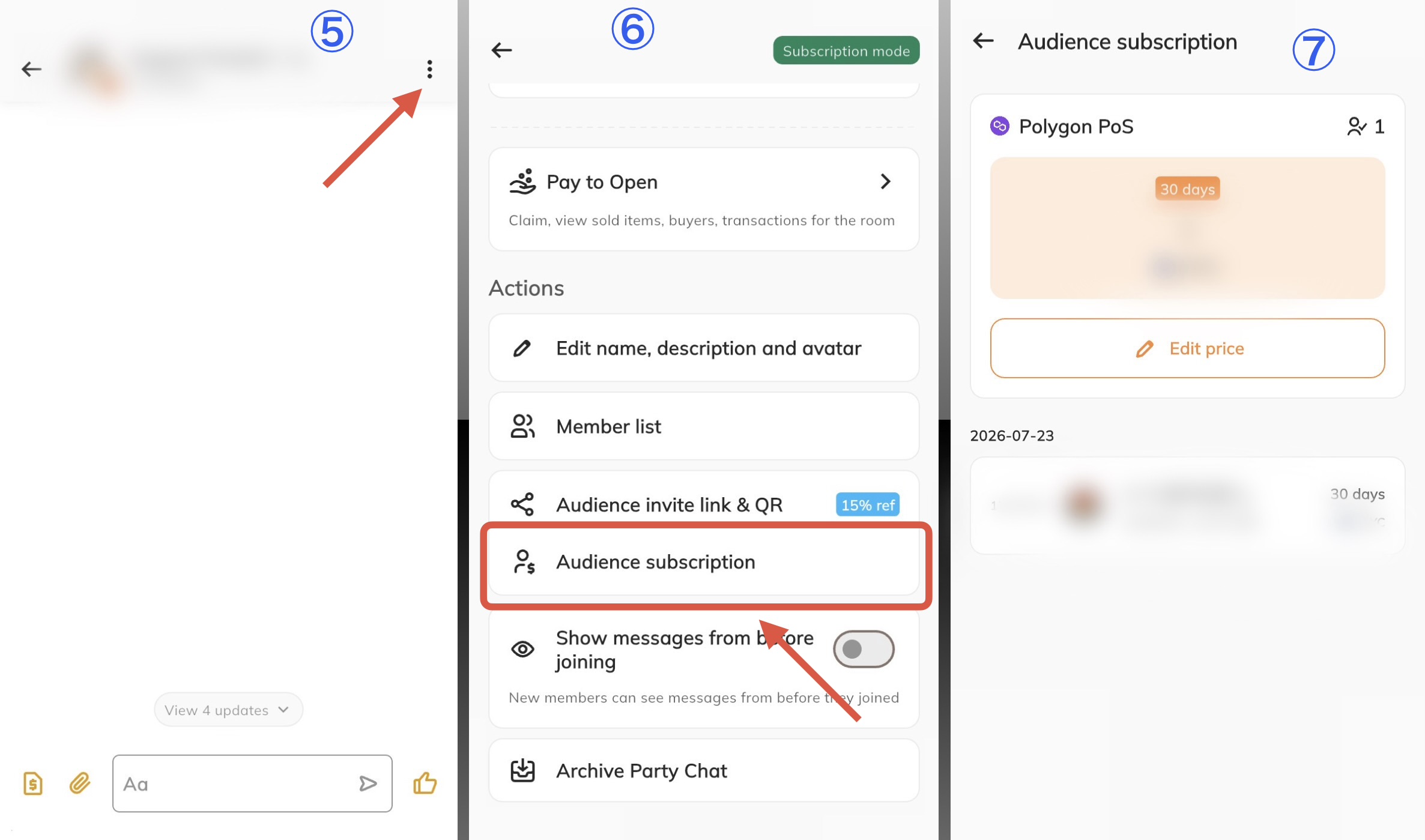
After creating your Party Chat, you can change the price via the three-dot menu in the top right of the chat room (Image ⑤).
After tapping the three-dot menu, select "Audience Subscription" from the list of options (Image ⑥).
The next screen, Image ⑦, shows your current plan and subscribers. If you'd like to make changes, select "Edit Price" to add or modify plans.
Receiving Your Subscription Earnings
When a subscriber pays their subscription fee, the earnings aren't sent directly to the admin's wallet — they're first pooled in a smart contract. Because of this, you'll need to complete the following steps to receive your earnings.
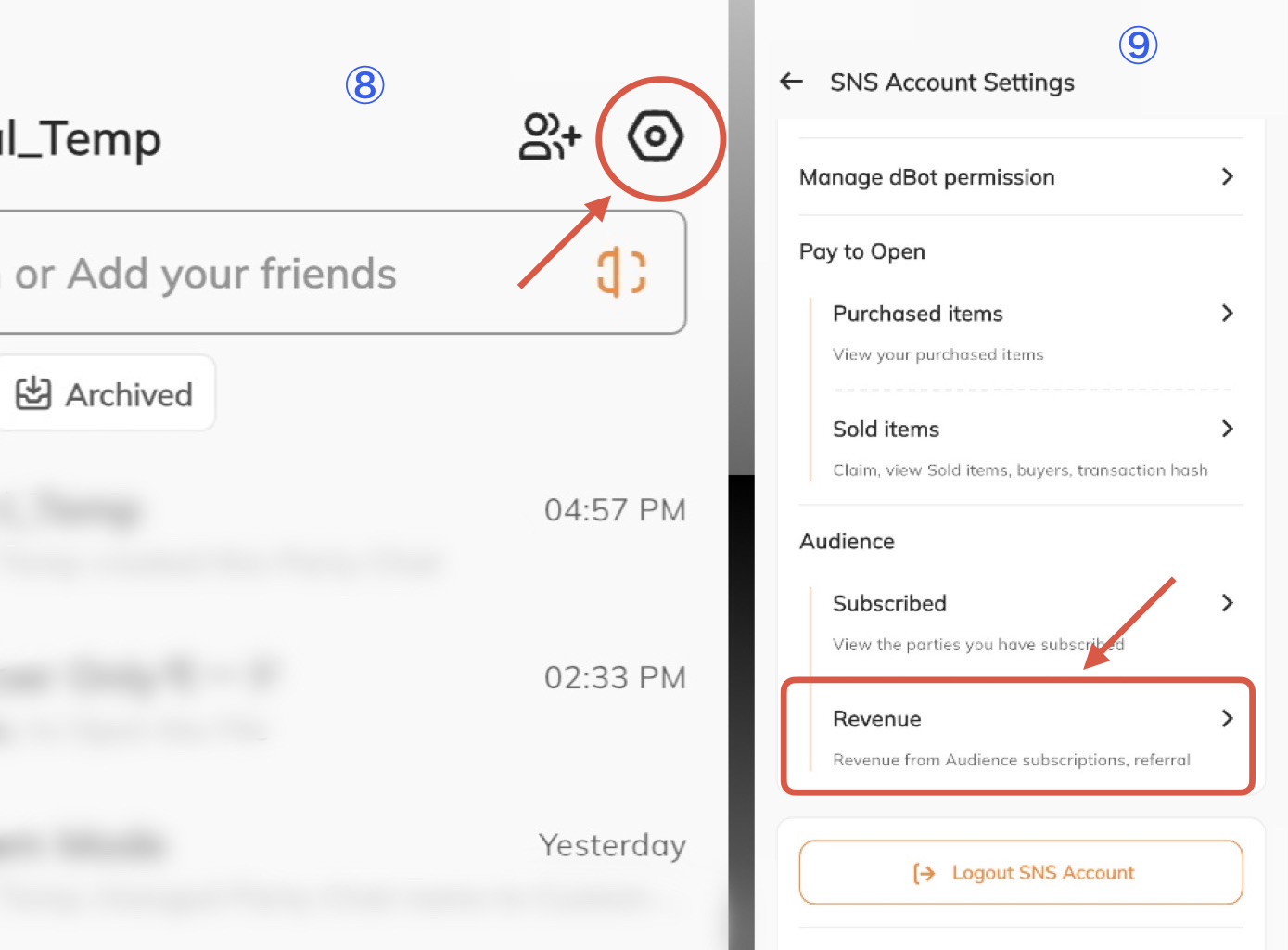
From the navigation bar at the bottom of the app, select the SNS screen, then select the hexagonal icon in the top right (Image ⑧).
After moving to your SNS account settings, select "Revenue" under the Audience section (Image ⑨).
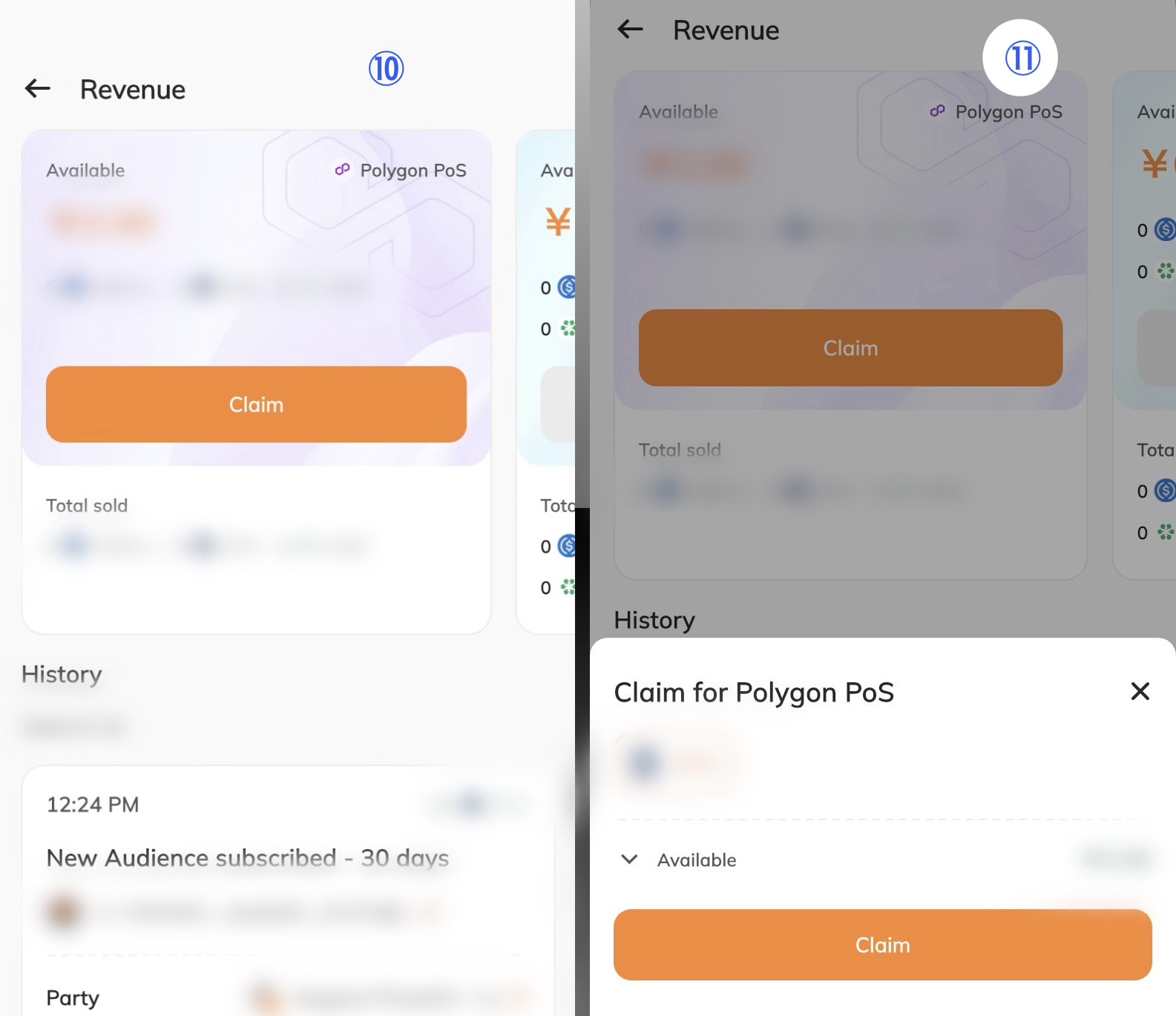
The revenue screen in Image ⑩ lets you check your pooled earnings and history so far. Select the network you'd like to claim earnings from, then tap "Claim."
A confirmation screen will appear (Image ⑪). Select "Claim" again, sign the transaction, and you'll receive your earnings.
Receiving your earnings requires a gas fee.
Related article: What is a Gas Fee?